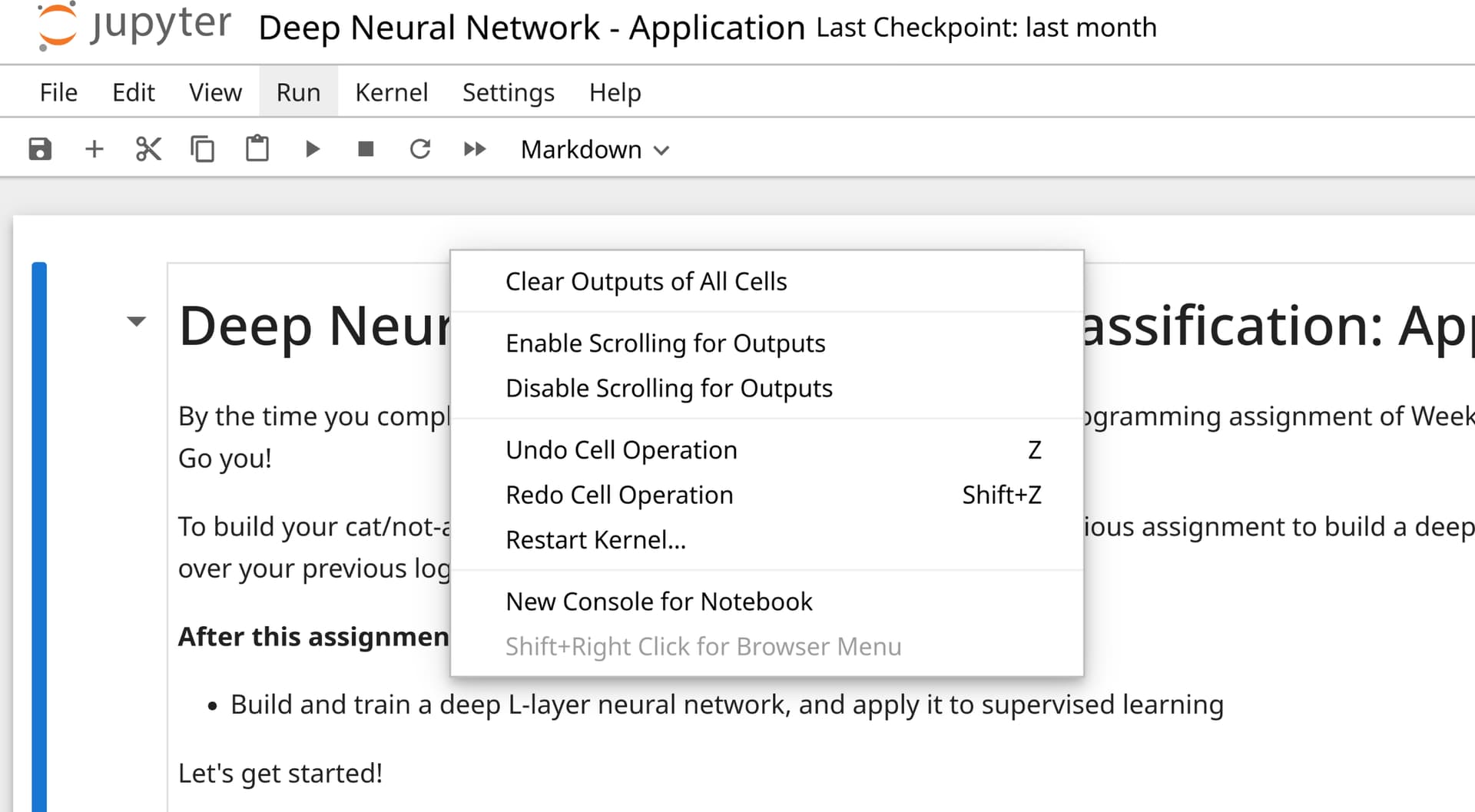
Hi, this question is about the Jupyter Lab version used by all the courses, but I wasn’t sure where to put questions like that, so I am asking here.
I want to turn on “word wrap” in Jupyter Lab so that I do not have to side-scroll to see long lines. However, it seems that the UI elements through which this would normally be done are missing (for example I cannot find “Settings” anywhere.
I tried to ask ChatGPT for help, but everything it suggested was a bust. This was after attempting to google the issue and find a solution that worked with my notebook.
Thanks, but that was the first thread I found, and most of the answers mention “Settings > Advanced Settings Editor > Select Notebook” (same thing ChatGPT suggested). I do not have “Settings”, or at least I cannot find it. Thus, my question.
*Edit: Also it seems that Jupyter is supposed to have its own context menu, but I can only get the browser (Firefox) to show the usual context menu. Something seems to not be working with my setup such that the normal Jupyter context menu (and shortcuts) do not take precedent over the browser.
If I run it through my terminal, I at least have a “Settings” menu, although not the right click. But my question is specifically about the environment provided to us for our lessons, not my local instance. Is the environment provided to us via the course on Coursera supposed to have a “Settings” menu or not?
And all of programming assignments in DLS use “Jupyter Notebook”.
These are two separate workspace environments. “Lab” is the latest and “notebook” is…well, I don’t want to say it is old, because it is not THAT old.
Anyways, you can try searching what you want to do using the keyword “Jupyter notebook” instead of “Jupyter lab”. Or you can download the notebooks and open them locally using Jupyter Lab.
@Mubsi wait, but I just installed Jupyter notebook locally and ran it. In local Notebook, I also have a settings menu (and working context menu!), unlike in the Coursera version.
What you shared above are two different versions of “Jupyter Notebook”. As you can imagine, things are different in both versions. Your local version seems to be more latest than Coursera’s.
Also, you can assume, for security reasons etc, Coursera might not have enabled “all” features of Jupyter Notebook.
Thanks. It would be nice if we were allowed to customize settings to make the notebooks more comfortable for us to use. This is not the first thing that I’ve wanted to change but been unable to (it would also be nice to be able to control the height of output cells). Is there no way to allow this without compromising security?