View documentation and signature
Finish the function’s name, type left parenthesis, press Shift + Tab, and the doc appears. If the function belongs to a library (e.g. numpy), the library must have been imported for the doc to appear. This saves time navigating the documentation website.

Variable / Function / Method name completion
Start typing a name, press the Tab key and a menu of matched name appears. If the desired name belongs to a library, the library must have been imported for it to show up in the menu.


File name and path completion
Start typing the path, press the Tab key and a menu of suggested path appears.

File saving
It’s important we don’t lose our progress.
-
The filled circle next to the file name indicates there is unsaved change:

-
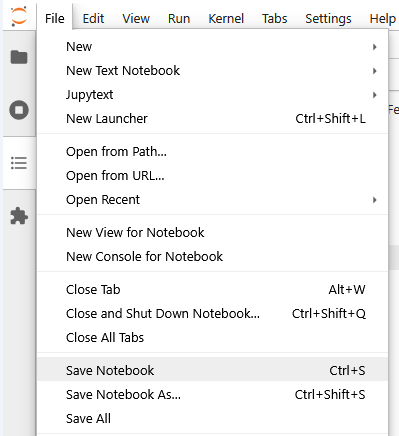
To save, press
Ctrl + Sor clickMenu: File > Save Notebook, and “the filled circle” should disappear.
-
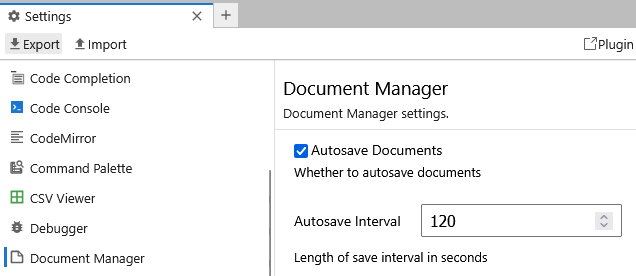
Autosave is configurable in
Menu: Settings > Settings Editor > Document Manager
View split
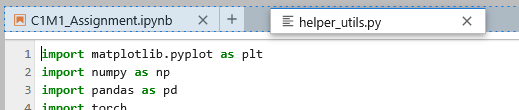
At times, we may want to view two files side by side, like the lab on one side and, on the other side, the utility script file that contains the interesting helper function.
-
With both files already opened, drag one of the tabs to where it should be placed in the split view.
-
Alternatively, the file may be dragged directly from the file browser.
-
Drag it to the right like below, release, and it will create a left-right split.
-
A left-right split is created.
-
The view may be split to show more files. Give it a try!



Download multiple files
Select them in the file browser, right click to show the menu, and click Download.

Table of content
In the left-most pane, click  , and the TOC is shown for easy navigation of the lab.

Be careful when delete a file
You may delete a file in the file browser, but you may not be able to recover it, so only do it if you are absolutely sure.

Notebook settings
In Menu: Settings > Settings Editor > Notebook, you may configure the coding experience with Code cell, Markdown cell and Raw cell respectively. Here we focus on Code cell and explain some of the options.
-
Auto Closing Brackets: when you type the left bracket, the right bracket is automatically typed. This works for quotation marks as well. This way, you won’t miss closing them.
-
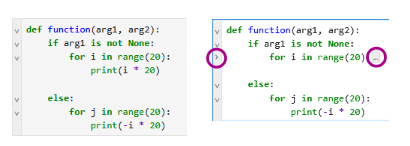
Code Folding: code blocks (e.g.
def, while, for, if, else, with, ...) may be folded up. It is helpful, for example, to fold a longelifblock to skip to theelseblock of interest.
-
Highlight trailing white space: it is a common practice to remove trailing white space. Google for more about this.

-
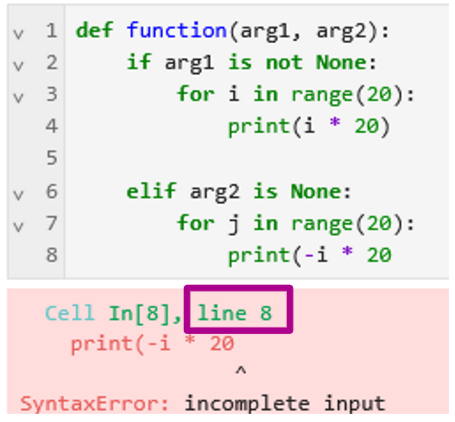
Line Numbers: use it to quickly locate the line reported in error message.
-
Match Brackets:
-
Place the cursor next to the left bracket, and it and the corresponding right bracket are highlighted.

-
If there is no corresponding right bracket, the left bracket is highlighted in red

- Rulers: it is recommended in PEP 8 (Style Guide for Python Code) that all lines should be limited to 79 characters and text blocks (docstrings or comments) to 72 characters.

Settings import / export
-
In
Menu: Settings > Settings Editor, there is aExportand aImportbutton that you can download and upload the settings in JSON file. This is useful to back up your settings, name and manage different settings, and synchronize your preferred settings among different labs/assignments and your local Jupyter. -
Before importing a settings file, it is recommended to export and back up the current settings so that you can roll back any time.
-
To check what the imported settings are different from the default, examine the setting groups listed under
MODIFIED. In these groups, next to the name of a modified setting, there is a “blue vertical bar”, so you may easily identify all the changed values.
